
Tips for AI-Generated Images
Transparify works by comparing a white-background and black-background version of the same image. Most of the time it just works, but some AI outputs need a small adjustment before they produce a clean result. This page covers the most common issues and how to fix them.
How Alpha Restoration Works
The tool compares every pixel between your two images. Where a pixel looks identical in both, the content is fully opaque. Where a pixel is completely different(white on the white version, black on the black version), it's pure background and becomes fully transparent. Everything in between gets a proportional alpha value, which is how glows, soft edges, and semi-transparent effects are preserved.
The key requirement: the actual artwork must be the same color in both images. Only the background should change between white and black.
White or Light-Colored Logos
This is the most common issue. When you ask an AI to generate a white logo on a white background, it often produces an invertedversion instead, drawing the artwork in black so it's visible. The result looks fine to a human, but it breaks the alpha restoration because the artwork color changed between the two versions.
The Problem
Here's what a typical AI generates when asked for a white logo on white and black backgrounds:
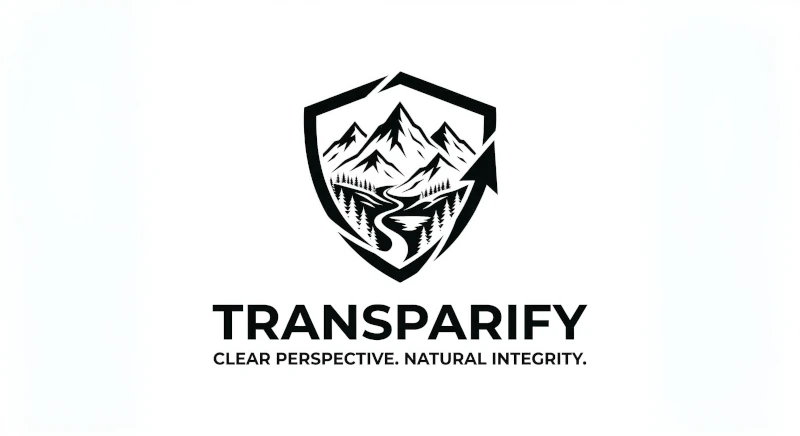
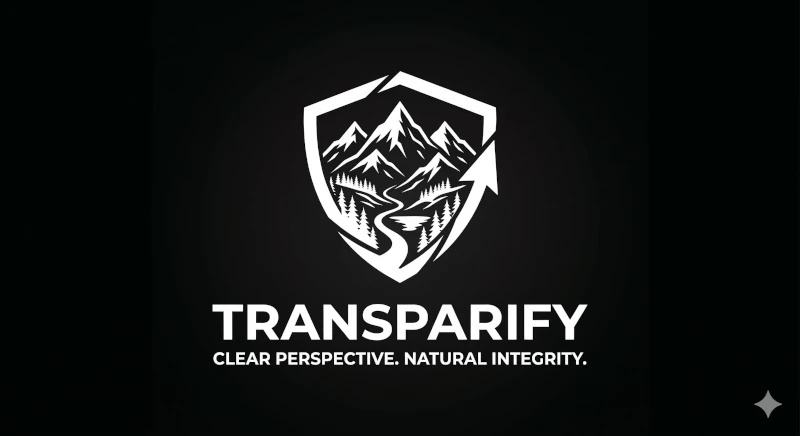
The artwork is black in one image and white in the other. The algorithm sees maximum pixel difference on both the background and the artwork, so it treats everything as transparent. The result comes out washed-out and gray:
Wrong Result
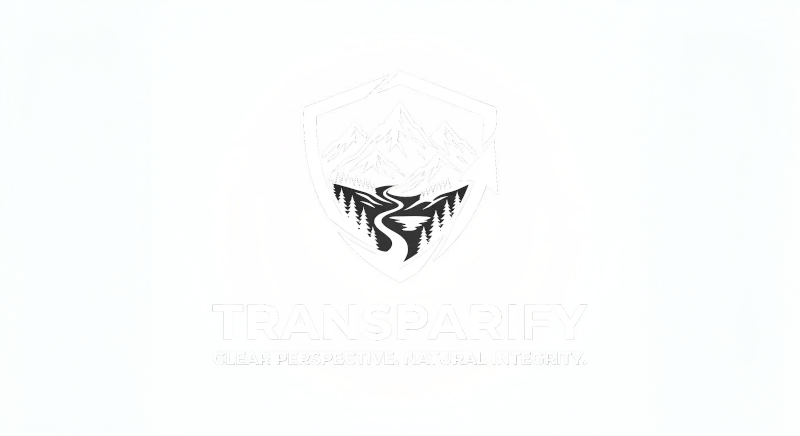
The artwork lost its white color and appears gray and semi-transparent, making it unusable for printing or design work.
The Fix
For white or light artwork, replace the AI-generated white-background image with a plain solid white image of the same dimensions. Then upload the white-on-black version as normal.

Why this works:
- White artwork pixels: white in the solid image, white on the black-background image = identical = alpha 1 (fully opaque)
- Background pixels: white in the solid image, black on the black-background image = maximum difference = alpha 0 (fully transparent)
Result
The white artwork is fully opaque with crisp edges, and the background is completely transparent. Ready for printing on t-shirts, dark surfaces, or any background color.
AI Generating Inverted Colors
The white logo scenario above is a specific case of a broader issue: AI models sometimes change the artwork color to make it visible against the requested background, rather than keeping it the same and only swapping the background.
Signs your images have this problem:
- The artwork appears as opposite colors in the two versions (dark lines vs. light lines)
- The result from Transparify looks ghostly, washed out, or almost fully transparent
- Colors in the result are muted or shifted to gray
How to Fix It
The same approach works for any light-colored artwork: use a plain solid white image as the white-background input instead of the AI-generated version. The tool then only needs the black-background image to do its job.
For dark-colored artwork that the AI inverted to light on the black background, you can do the reverse: use a plain solid black image as the black-background input and keep the white-background version with the dark artwork.
Faint Box Around Printed Designs
The PNG looks perfectly transparent on screen, but when it's printed on a shirt (DTF or DTG), a faint rectangle shows up around the whole design.
This happens because AI "solid" backgrounds are rarely perfectly solid. They're often slightly off-white, slightly off-black, or carry a faint texture or noise. Those tiny differences come through as pixels that are 1–4% opaque. You can't see them on screen, but printers lay down ink (and a white underbase) under every pixel that isn't 100% transparent.
How to Fix It
Leave Remove background hazeswitched on in the Export panel (it's on by default). It makes every pixel under 5% opacity fully transparent, which clears the box without touching your artwork. The only reason to turn it off is if you need the very faintest edge of a glow for on-screen use.
If you downloaded your file before this option existed, run the same two images through the tool again and download a fresh copy.
Best Practices for AI Prompts
Getting the best results starts with how you prompt the AI. Here are tips for generating image pairs that work well with alpha restoration:
- Be explicit about keeping colors consistent. Tell the AI: "Generate this image with exactly the same colors on a pure white background" and then "on a pure black background."
- If your artwork is white or very light, skip the white-background generation. Just generate the black-background version and use a solid white image as the other input.
- If your artwork is black or very dark, skip the black-background generation. Just generate the white-background version and use a solid black image as the other input.
- Check for color consistency before uploading.Zoom in on a detail in both images. The artwork itself should be the same color in both. If it's inverted, use the solid-image workaround.
- Use the same prompt seed / reference. Some AI tools (Midjourney, Flux) let you lock a seed or reference image. This helps ensure both versions have identical composition and colors.
Ready to restore transparency?
Try the Free Tool